> ## Documentation Index
> Fetch the complete documentation index at: https://docs.emby.ai/llms.txt
> Use this file to discover all available pages before exploring further.
# How to Customize Benefits Order in Checkouts
> Learn how to customize the order in which Benefits appear in checkouts.
## Create a Product with Benefits
* [Create a Custom Benefit](https://polar.sh/docs/guides/automate-post-purchase-link-sharing#create-a-custom-benefit)
* [Create a File Downloads Benefit](https://polar.sh/docs/features/benefits/file-downloads#create-downloadable-benefit)
[Create a Product](https://polar.sh/docs/features/products#create-a-product) that includes the two **Benefits** created above.
Instead of creating the Benefits beforehand, you can also create them while creating the product by clicking the `Create New` button under the desired Benefit Type in the Automated Benefits section of the product configuration.
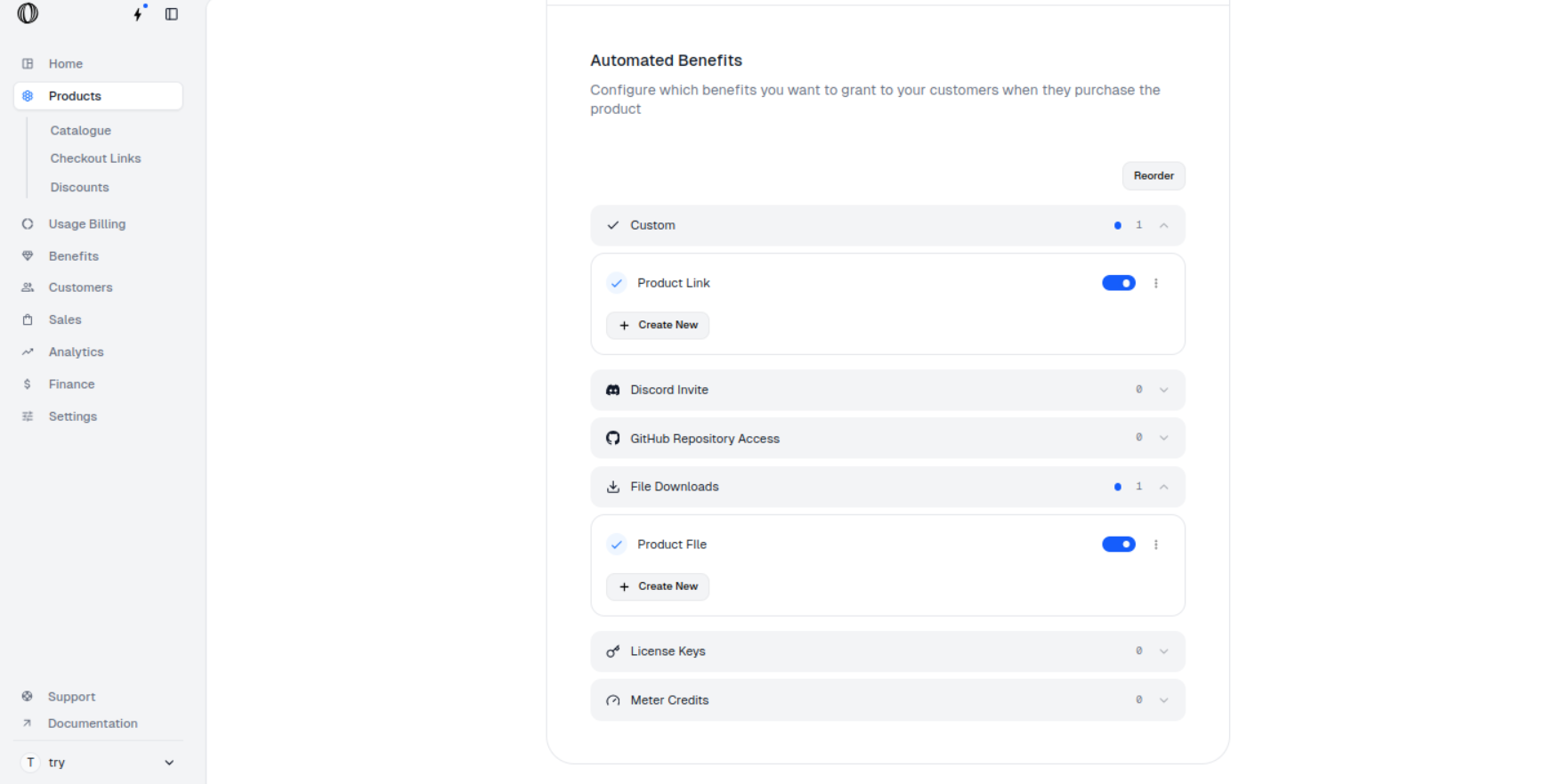 [Create a Checkout Link](https://polar.sh/docs/features/checkout/links#create-a-checkout-link) for the product.
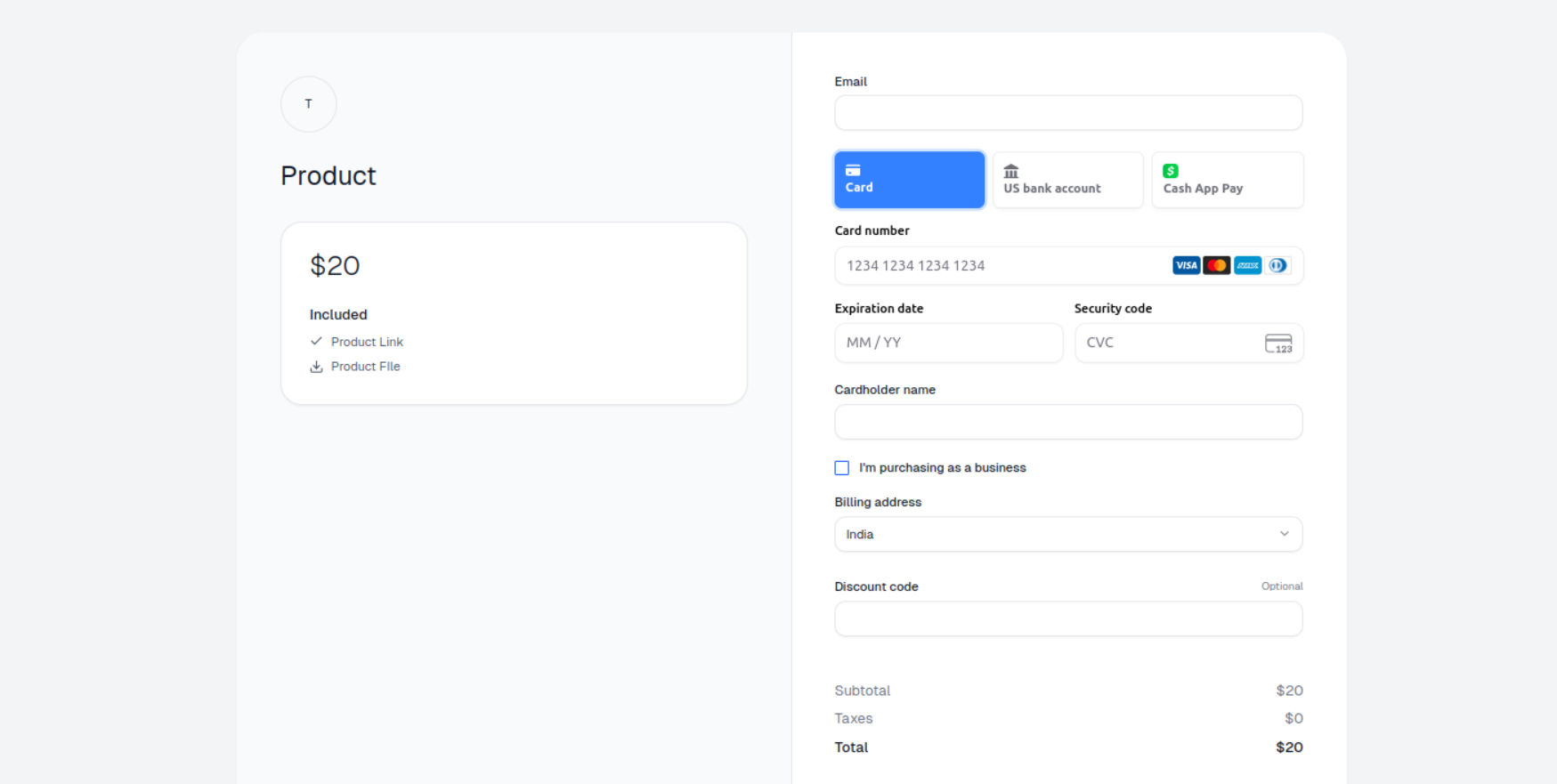
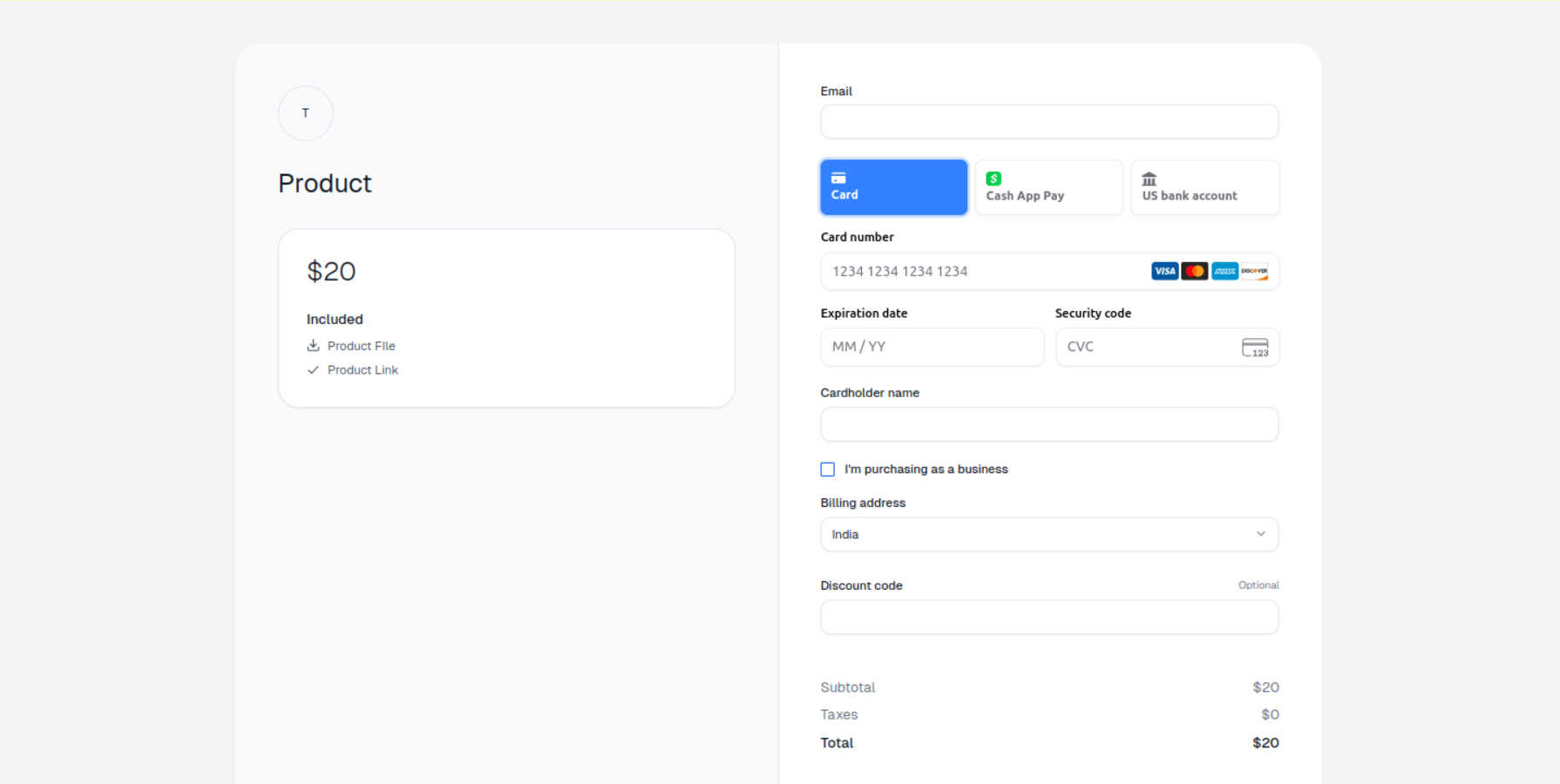
The checkout session looks like below. The Custom Benefit named **Product Link** appears first, followed by the File Downloads Benefit named **Product File**.
[Create a Checkout Link](https://polar.sh/docs/features/checkout/links#create-a-checkout-link) for the product.
The checkout session looks like below. The Custom Benefit named **Product Link** appears first, followed by the File Downloads Benefit named **Product File**.
 ## Reorder Benefits
In the Polar dashboard sidebar, navigate to **Products** > **Catalogue** for your organization. You can also go directly to `https://polar.sh/dashboard/${org_slug}/products`.
## Reorder Benefits
In the Polar dashboard sidebar, navigate to **Products** > **Catalogue** for your organization. You can also go directly to `https://polar.sh/dashboard/${org_slug}/products`.
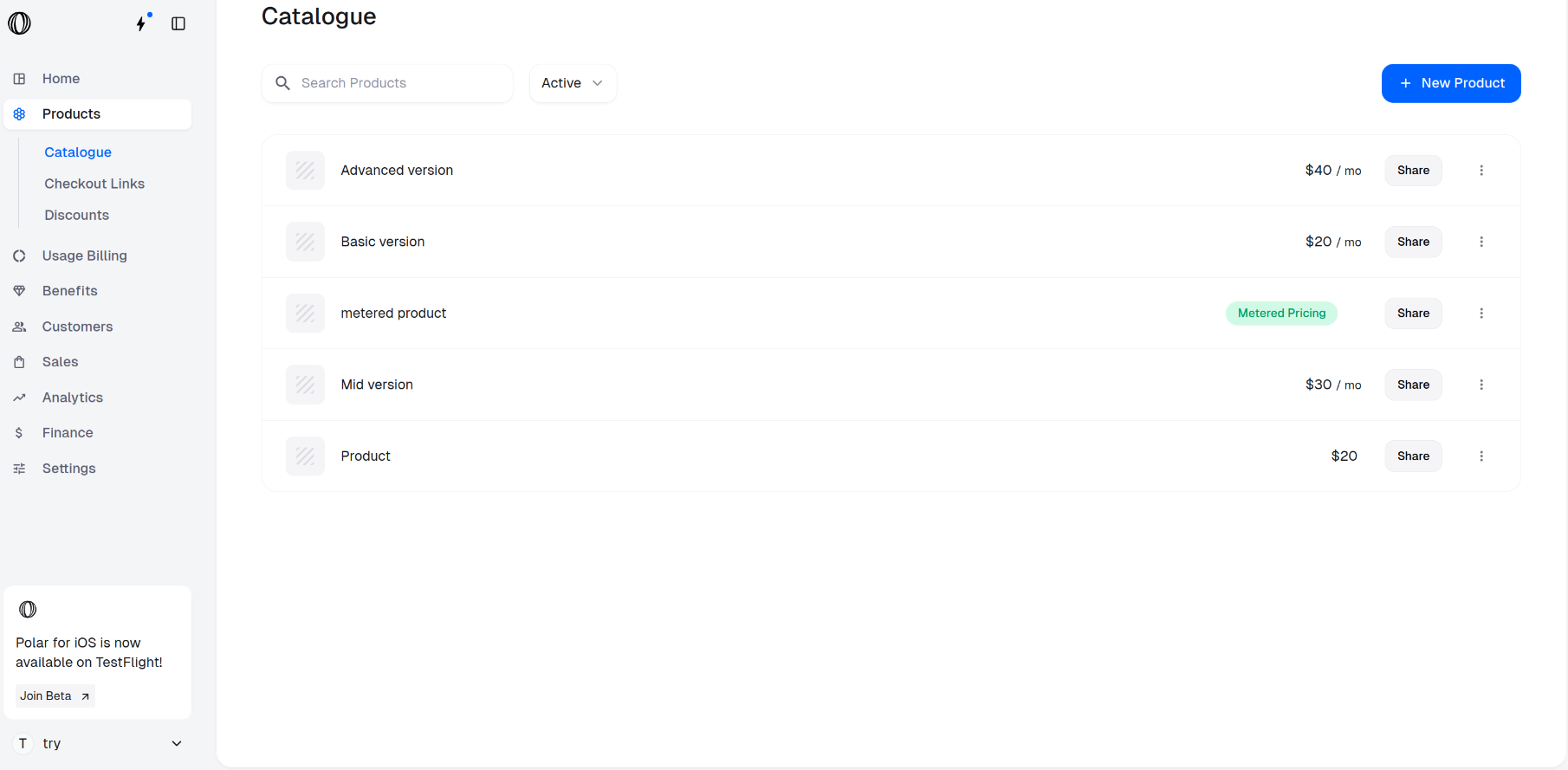 Choose the product whose Benefits you want to reorder, click on it and scroll down to the **Automated Benefits** section.
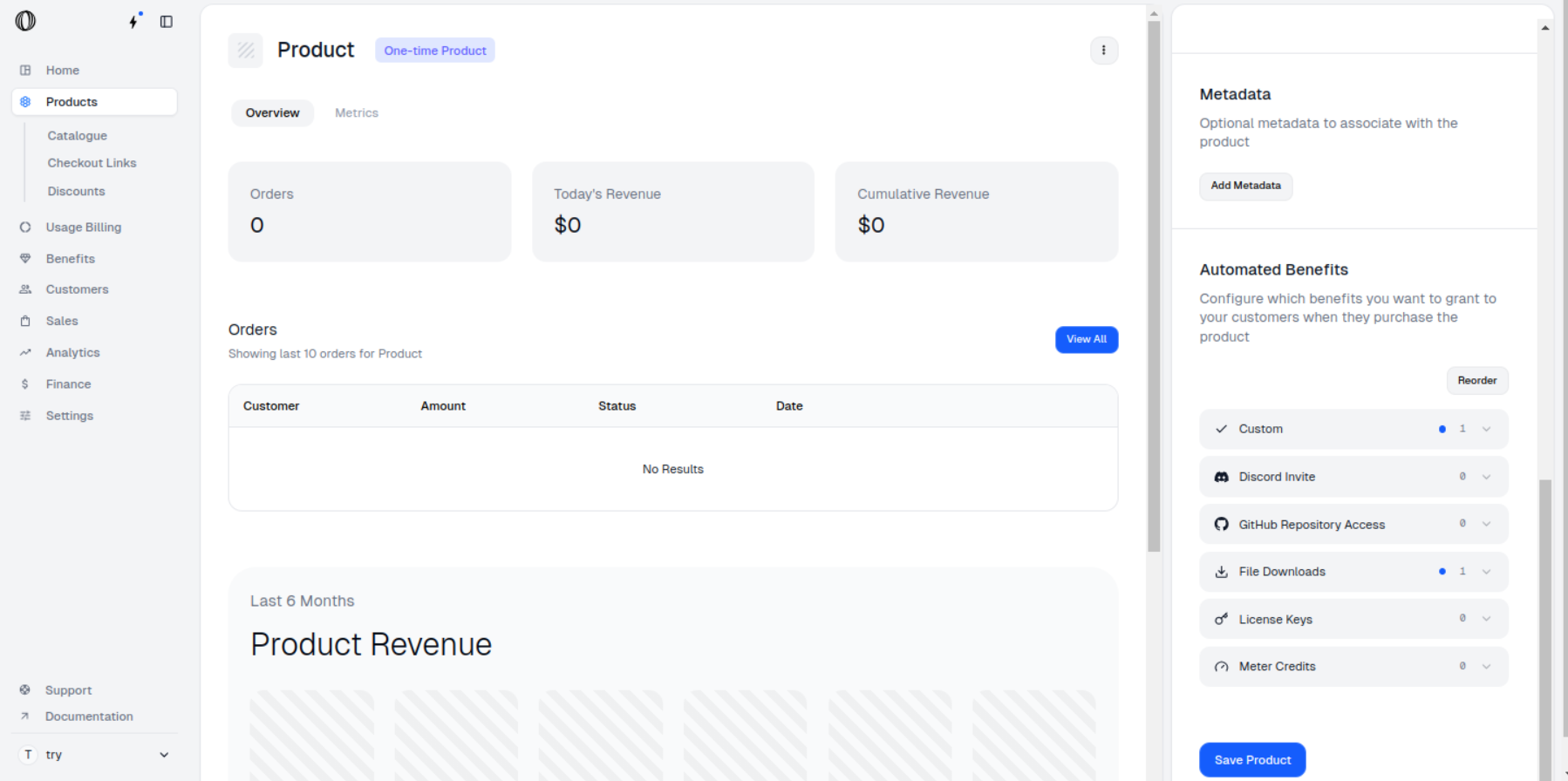 Click the `Reorder` button to change the order of benefits.
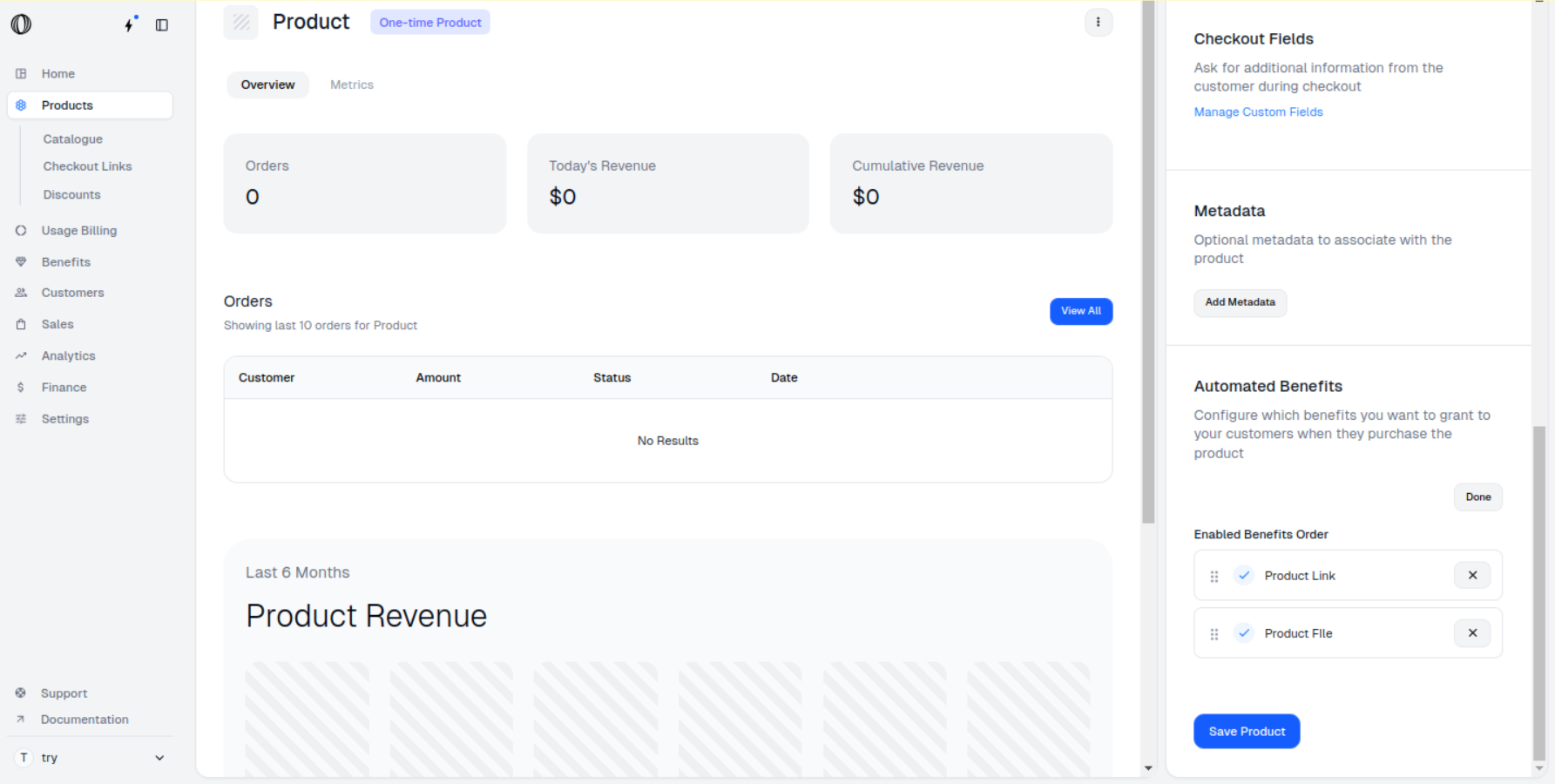 Drag the Benefits up or down to change their order as desired.
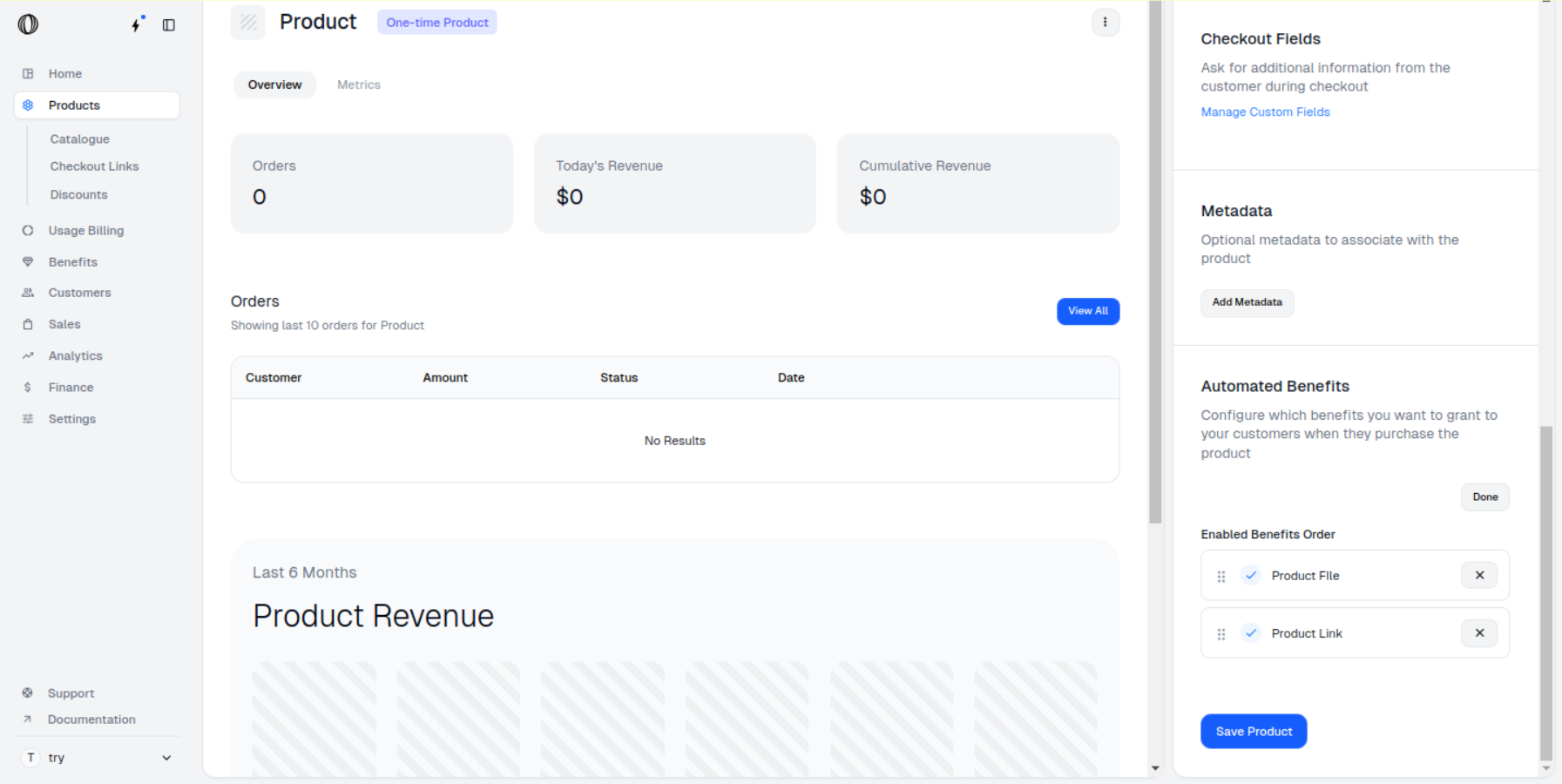 Open the product checkout page. The benefits have been reordered successfully.
 You can also Reorder the Benefits while creating the Product itself by clicking on `Reorder` button in Automated Benefits section.