> ## Documentation Index
> Fetch the complete documentation index at: https://docs.emby.ai/llms.txt
> Use this file to discover all available pages before exploring further.
# How to create product variants
> Learn how create product variants in Polar and how customers can easily switch between them in the customer portal.
## Creating product variants (3 subscription products)
In the Polar dashboard sidebar, navigate to **Products** > **Catalogue** for your organization.
You can also go directly to:\
`https://polar.sh/dashboard/${org_slug}/products`
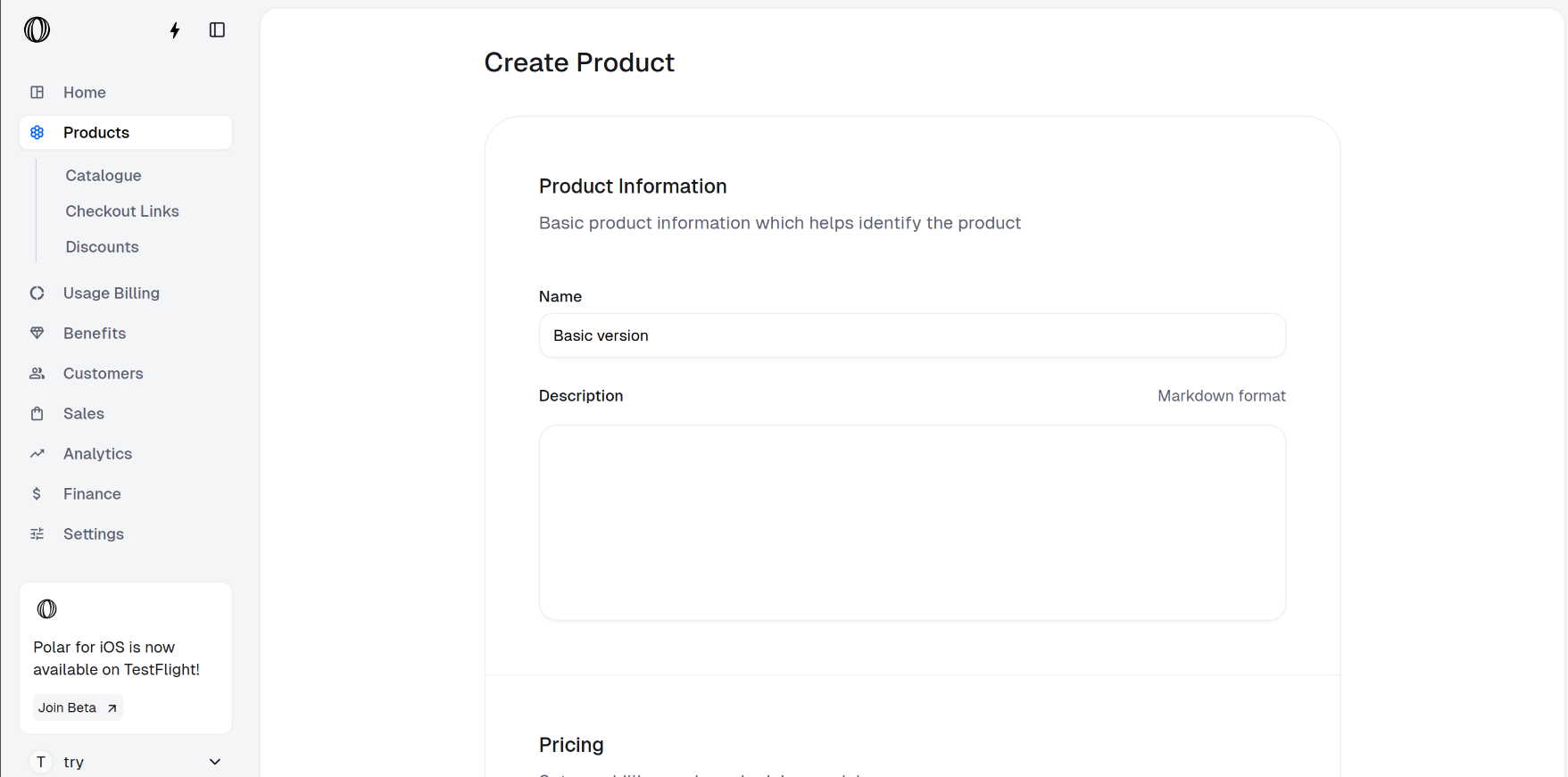
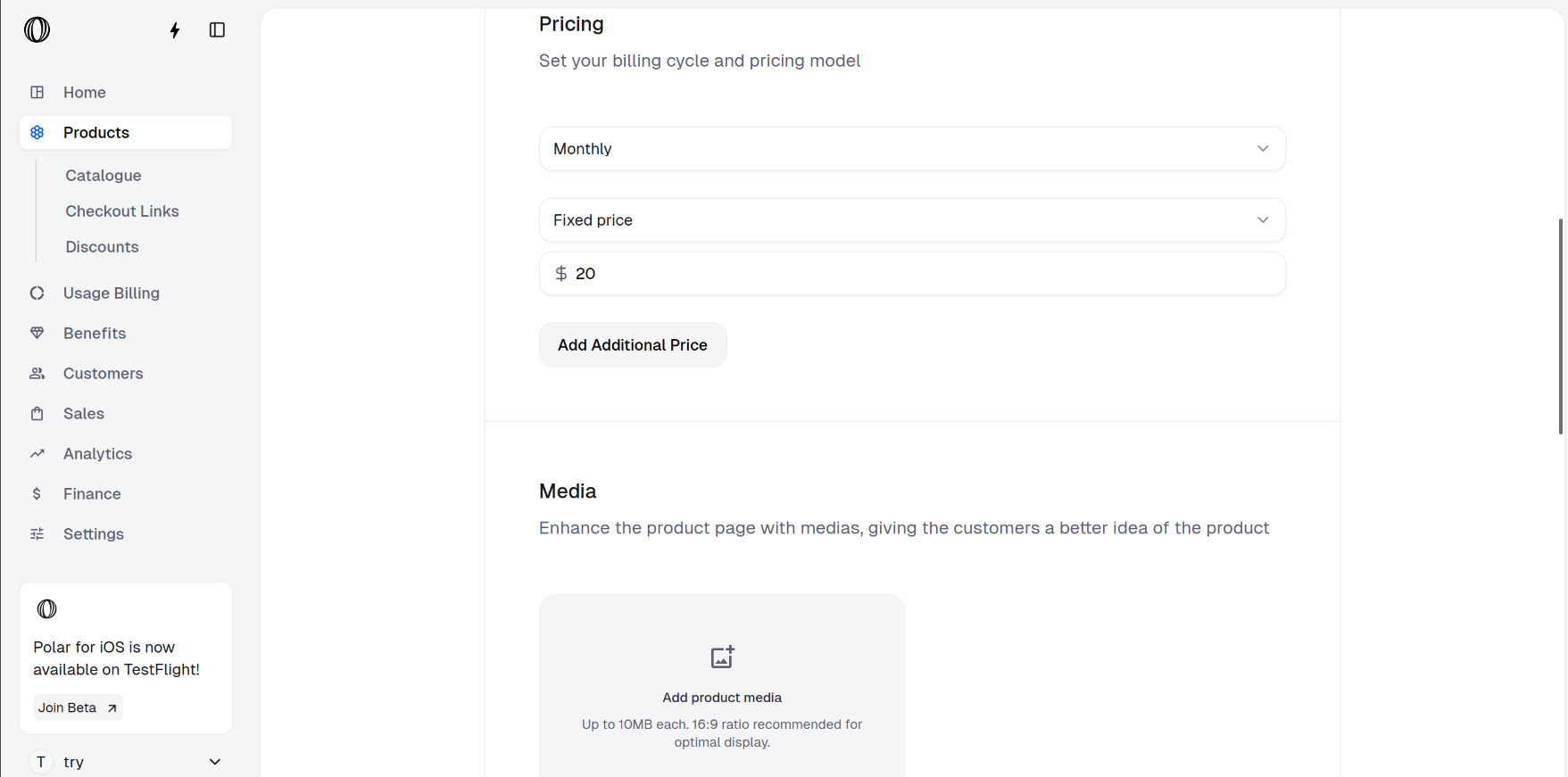
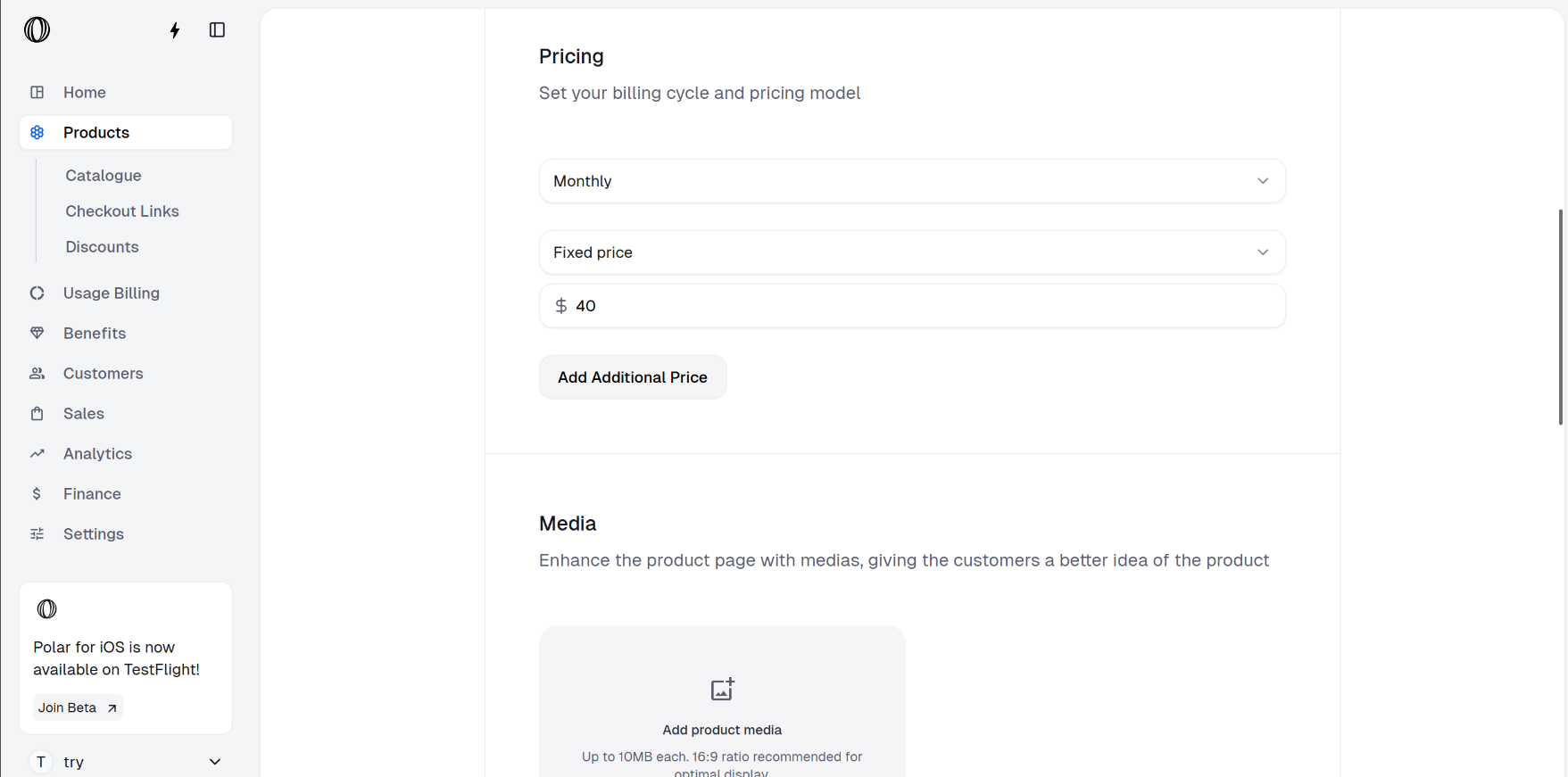
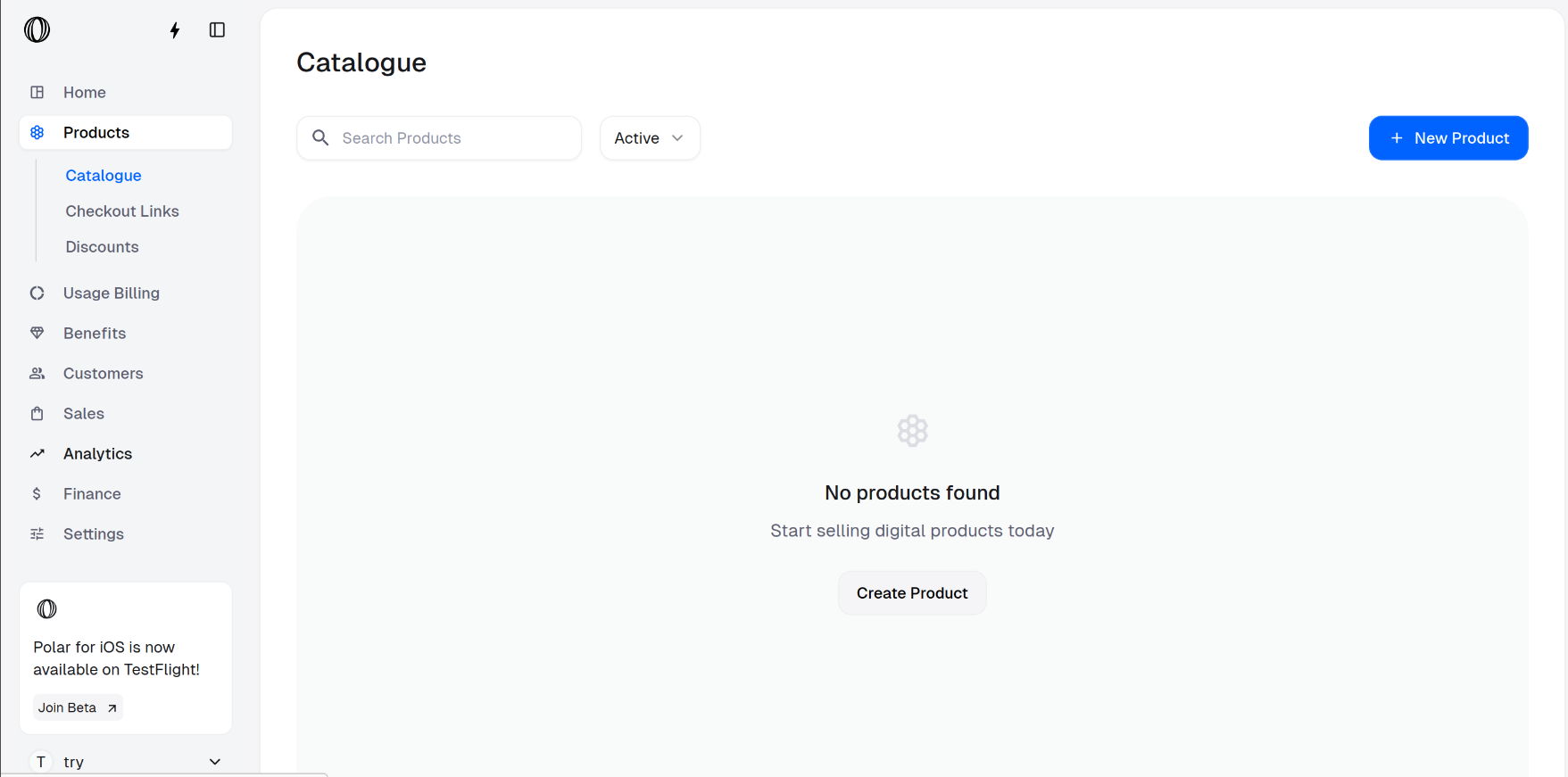 Click on **New Product** and fill the product information. Here, we are creating a monthly subscription product **Basic version** with cost \$20.
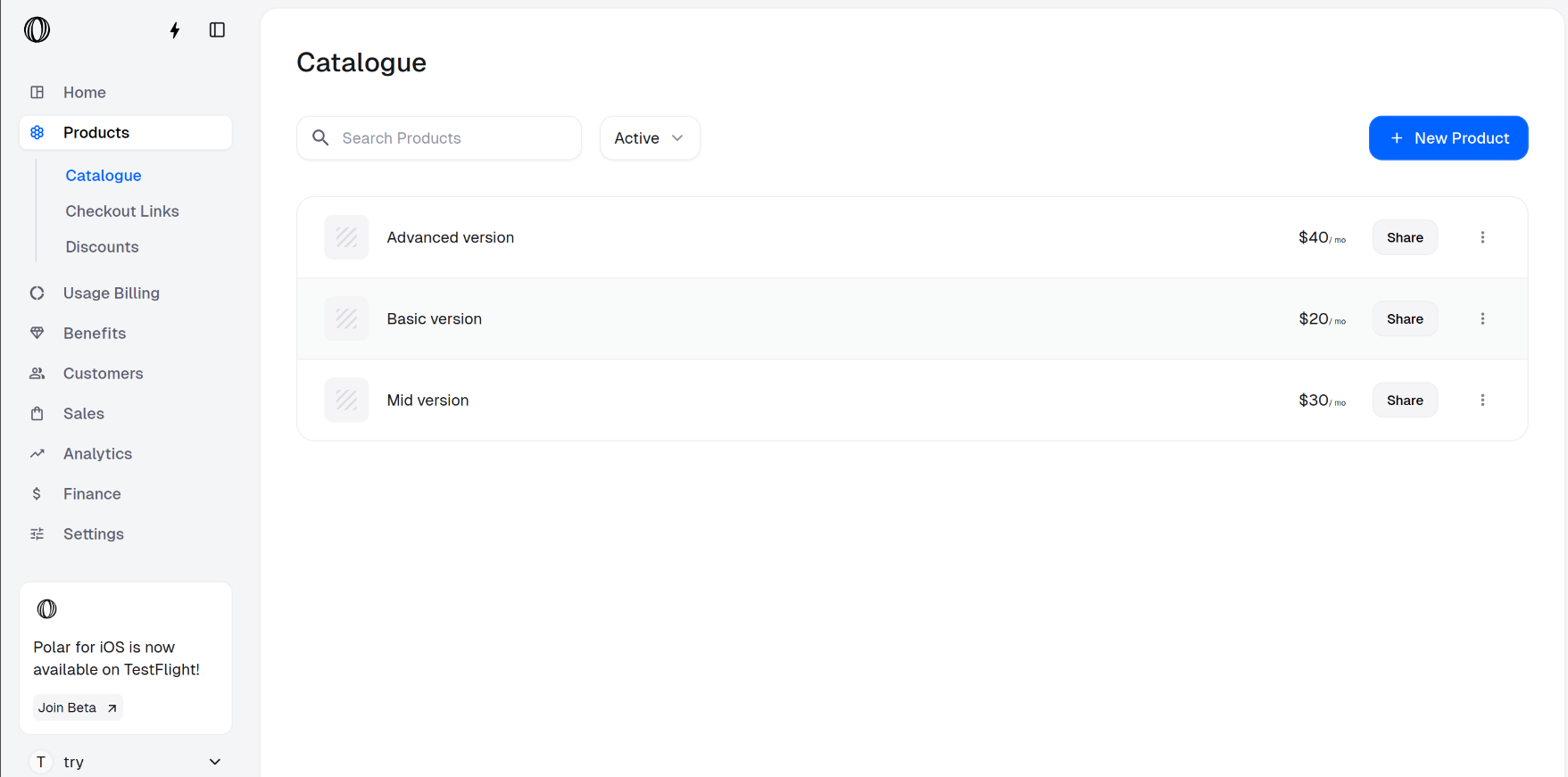
 Your product catalogue should now show this product as follows:
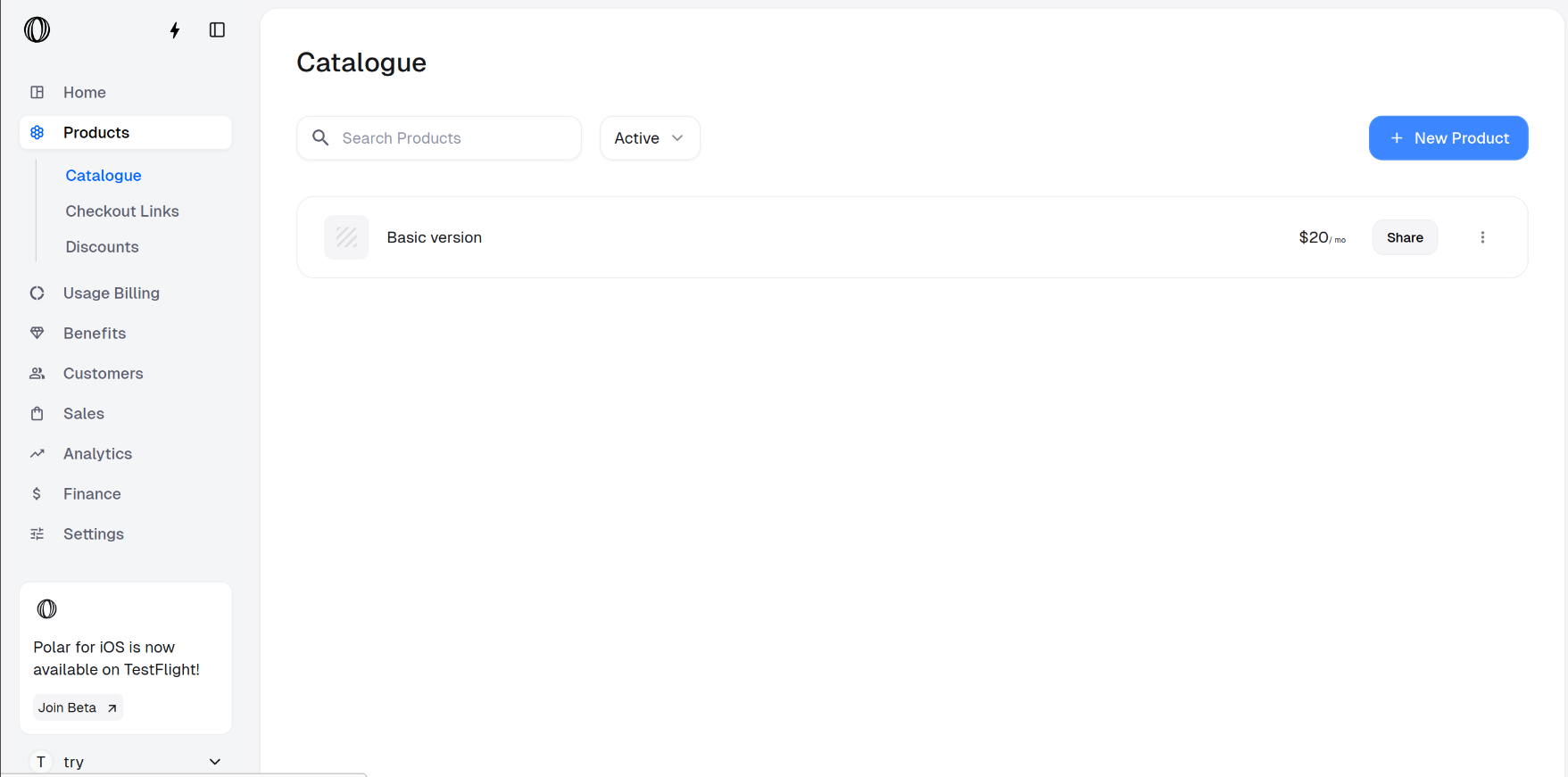 Click on **New Product** and create two more subscription products one by one.
* **Mid version**: Fill the product information. We create a monthly subscription product named **Mid version** with cost \$30.
Click on **New Product** and create two more subscription products one by one.
* **Mid version**: Fill the product information. We create a monthly subscription product named **Mid version** with cost \$30.
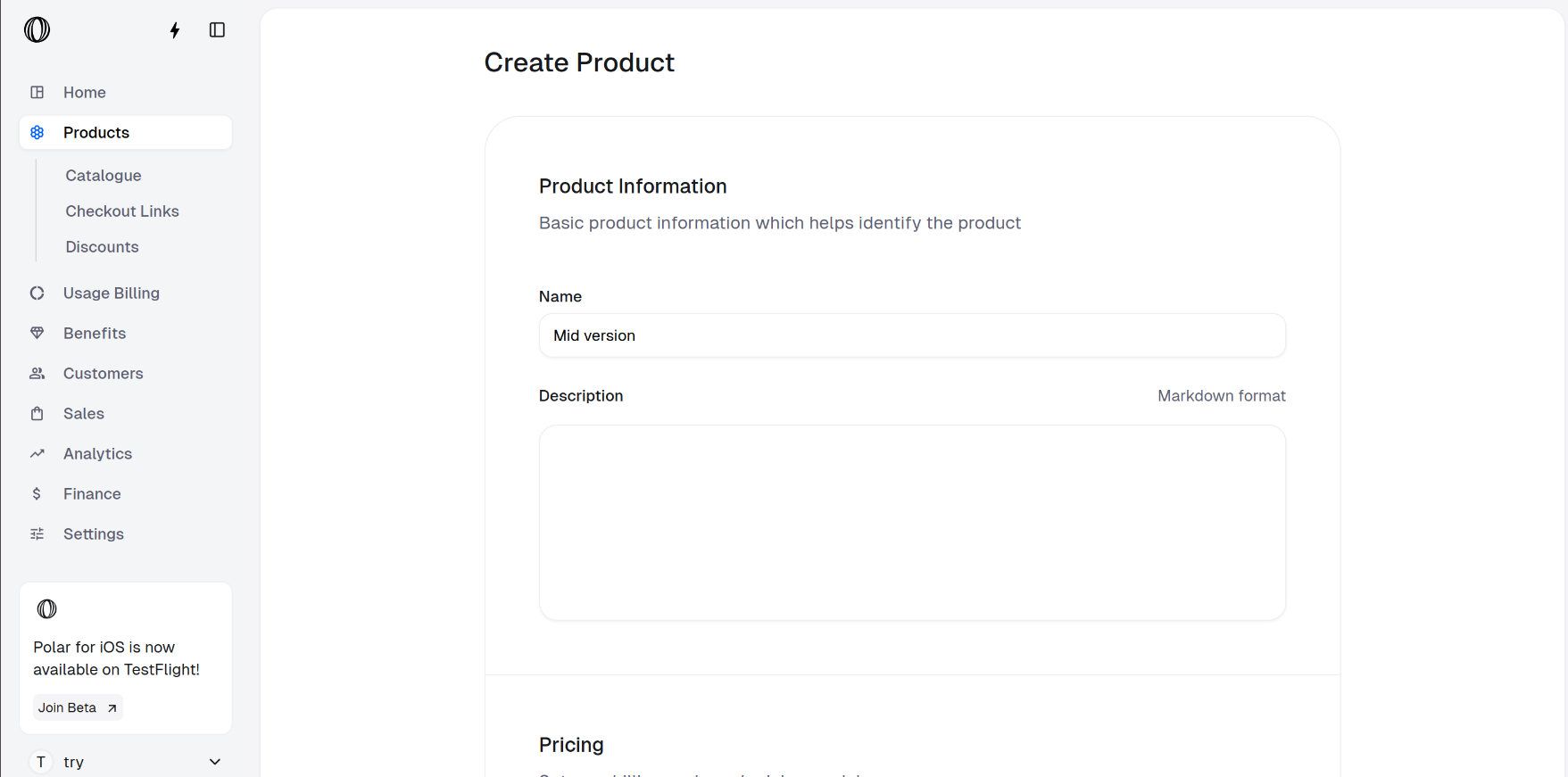
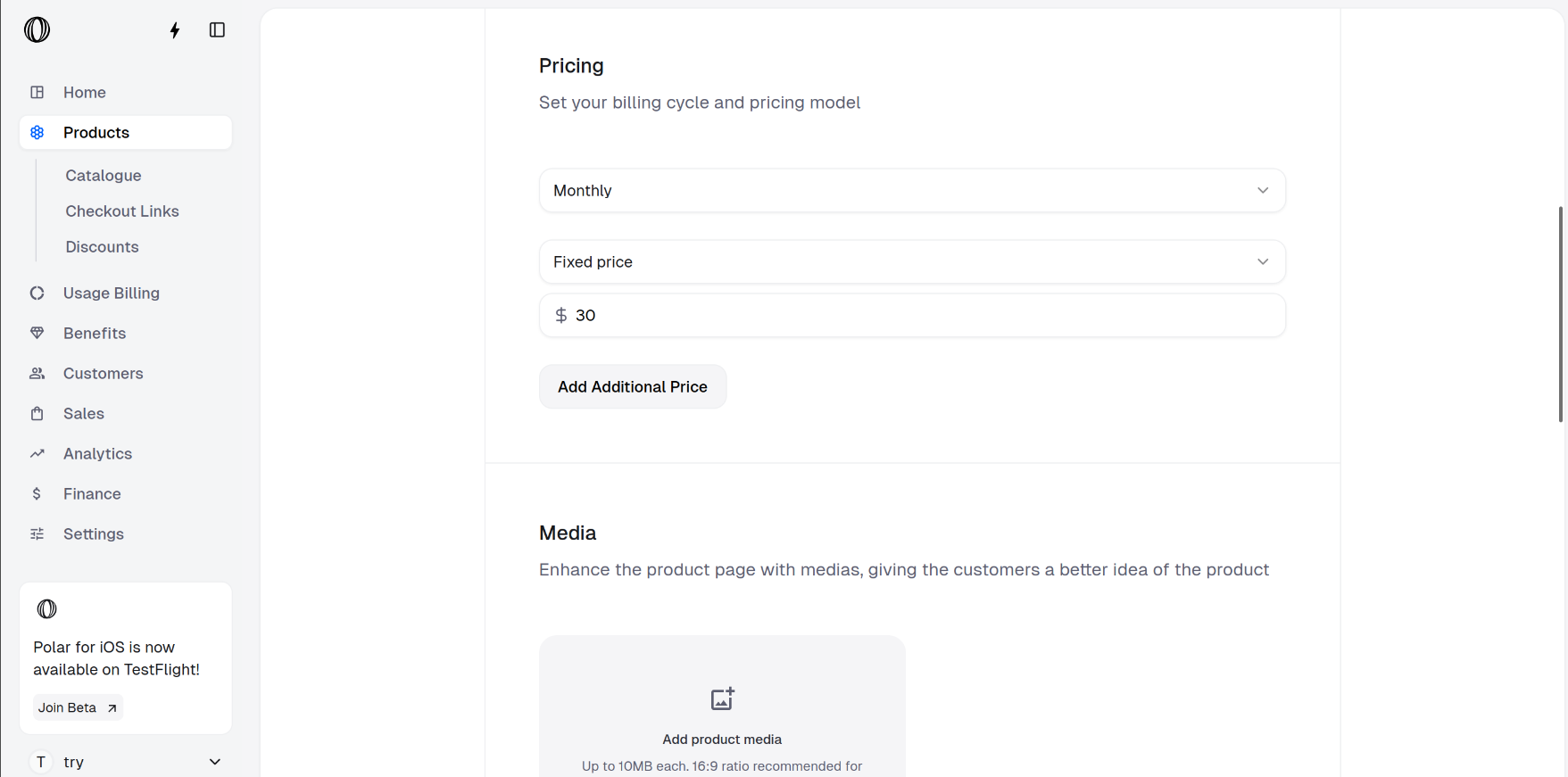 * **Advanced version**: We create a monthly subscription product named **Advanced version** with cost \$40.
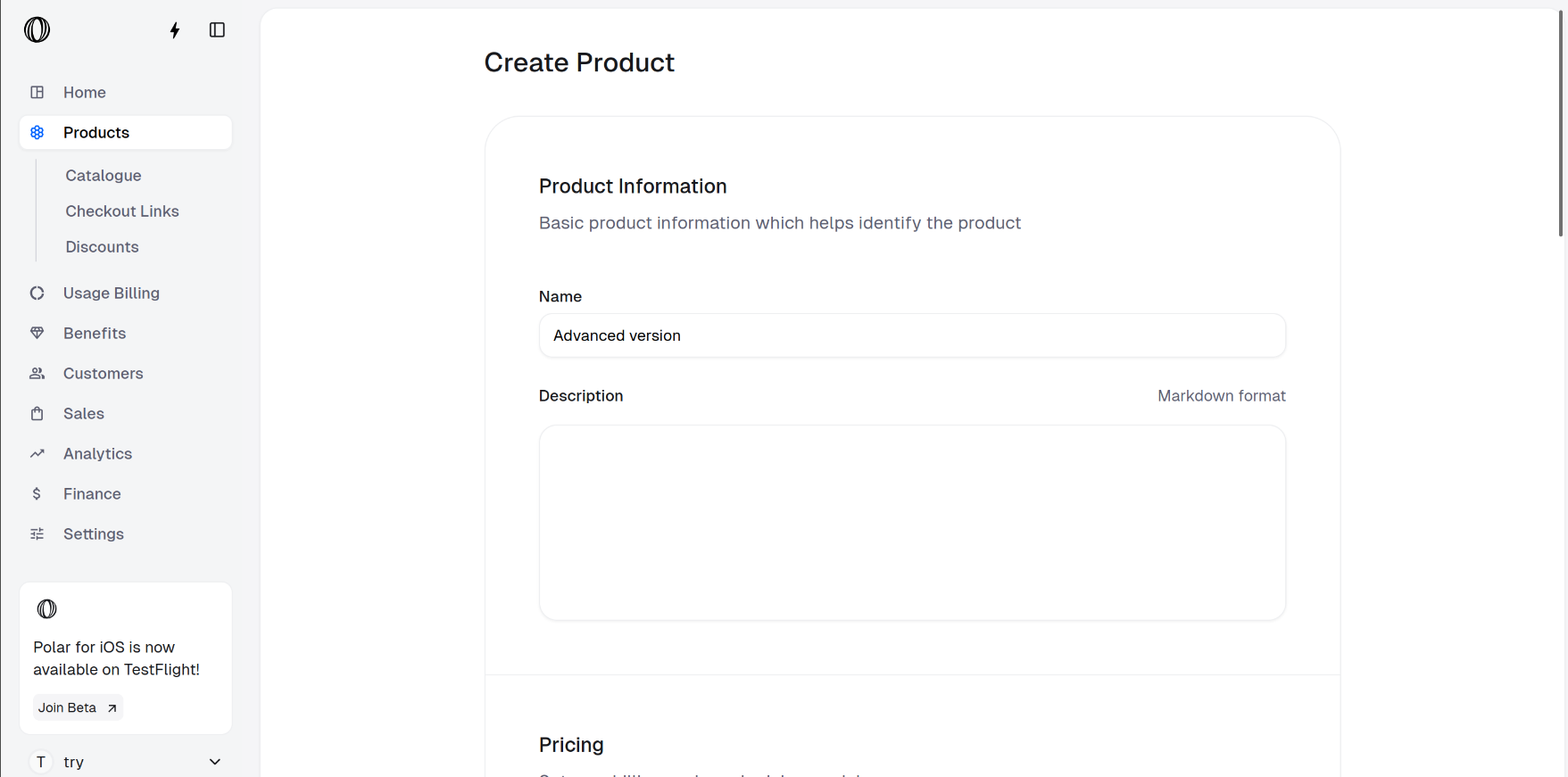
 * **Product Catalogue**: You should be able to see all your products on Product Catalogue.
 ## Creating checkout links with variants
In the Polar dashboard sidebar, navigate to **Products** > **Checkout Links**.
You can also go directly to:\
`https://polar.sh/dashboard/${org_slug}/products/checkout-links`
## Creating checkout links with variants
In the Polar dashboard sidebar, navigate to **Products** > **Checkout Links**.
You can also go directly to:\
`https://polar.sh/dashboard/${org_slug}/products/checkout-links`
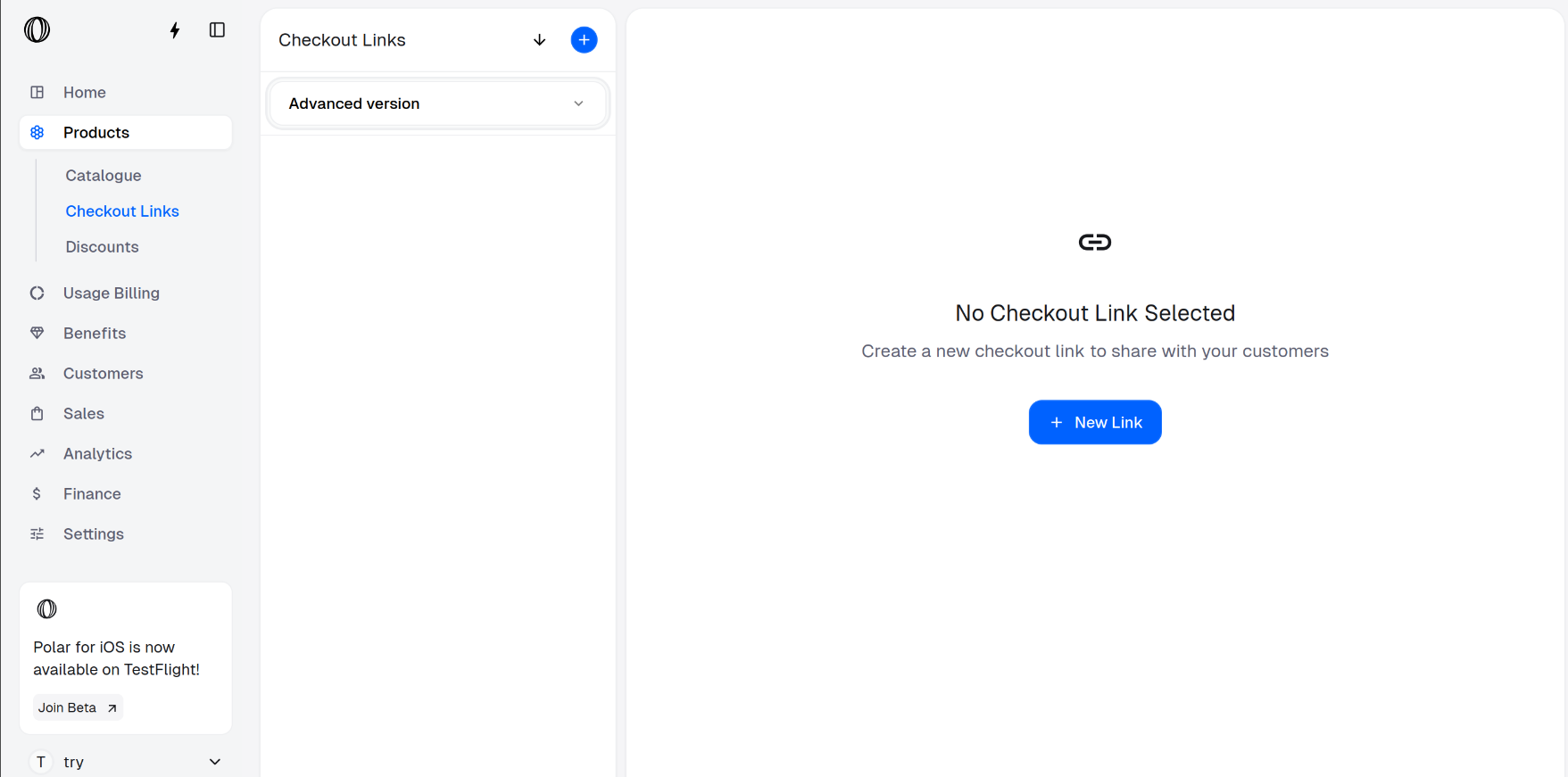 Click on **New Link** and select all your products which you want to offer as variants.
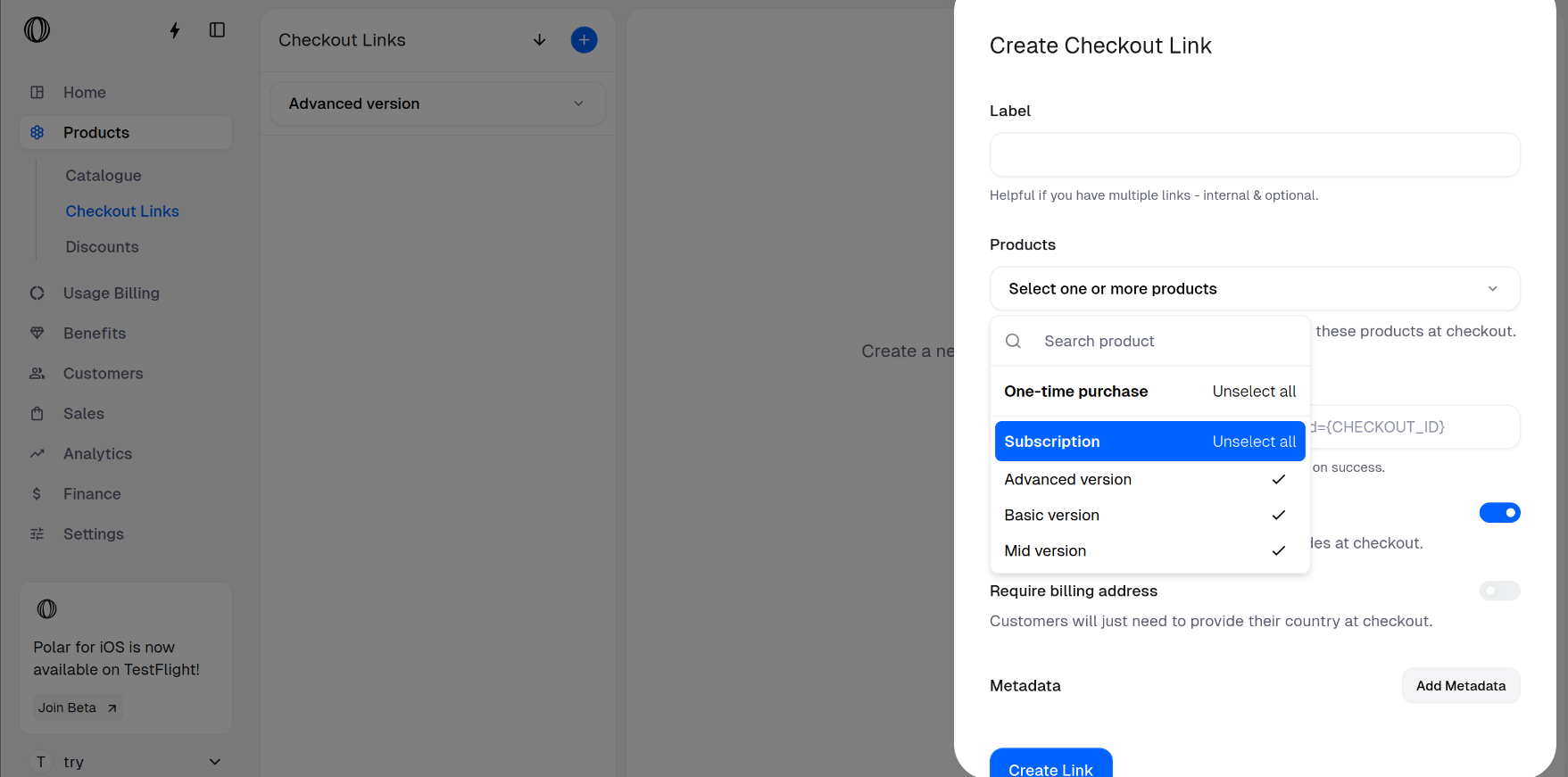 At this step, you may add a label, success URL and metadata. You may also configure whether discount codes are allowed and whether billing address is required from customers.
Click on **Create Link** after adding your configurations.
You should be able to see your label name in **Checkout Links**. In our case, **3 products** is the default label name assigned by the system.
At this step, you may add a label, success URL and metadata. You may also configure whether discount codes are allowed and whether billing address is required from customers.
Click on **Create Link** after adding your configurations.
You should be able to see your label name in **Checkout Links**. In our case, **3 products** is the default label name assigned by the system.
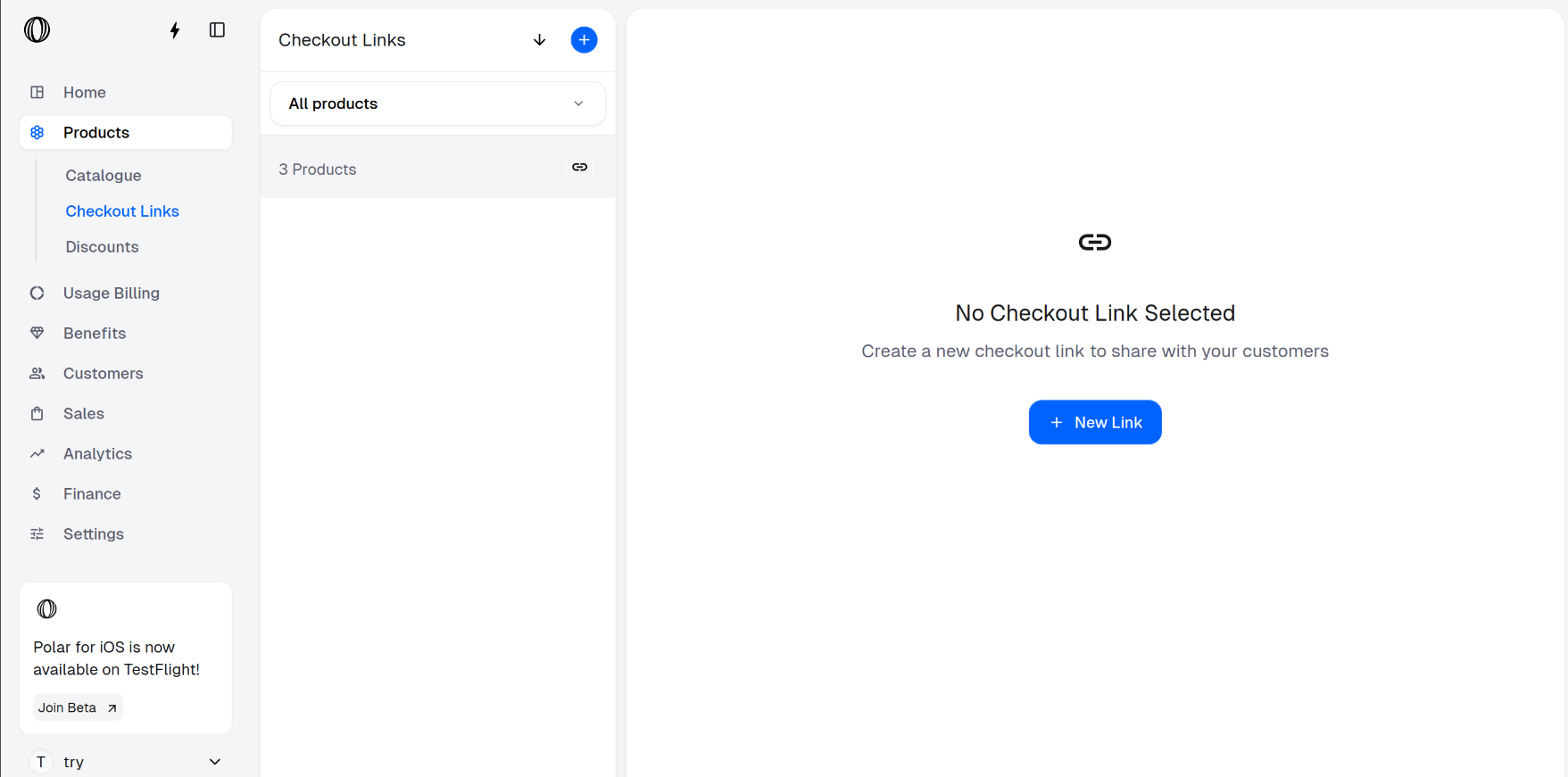 Click on your label to see the checkout link.
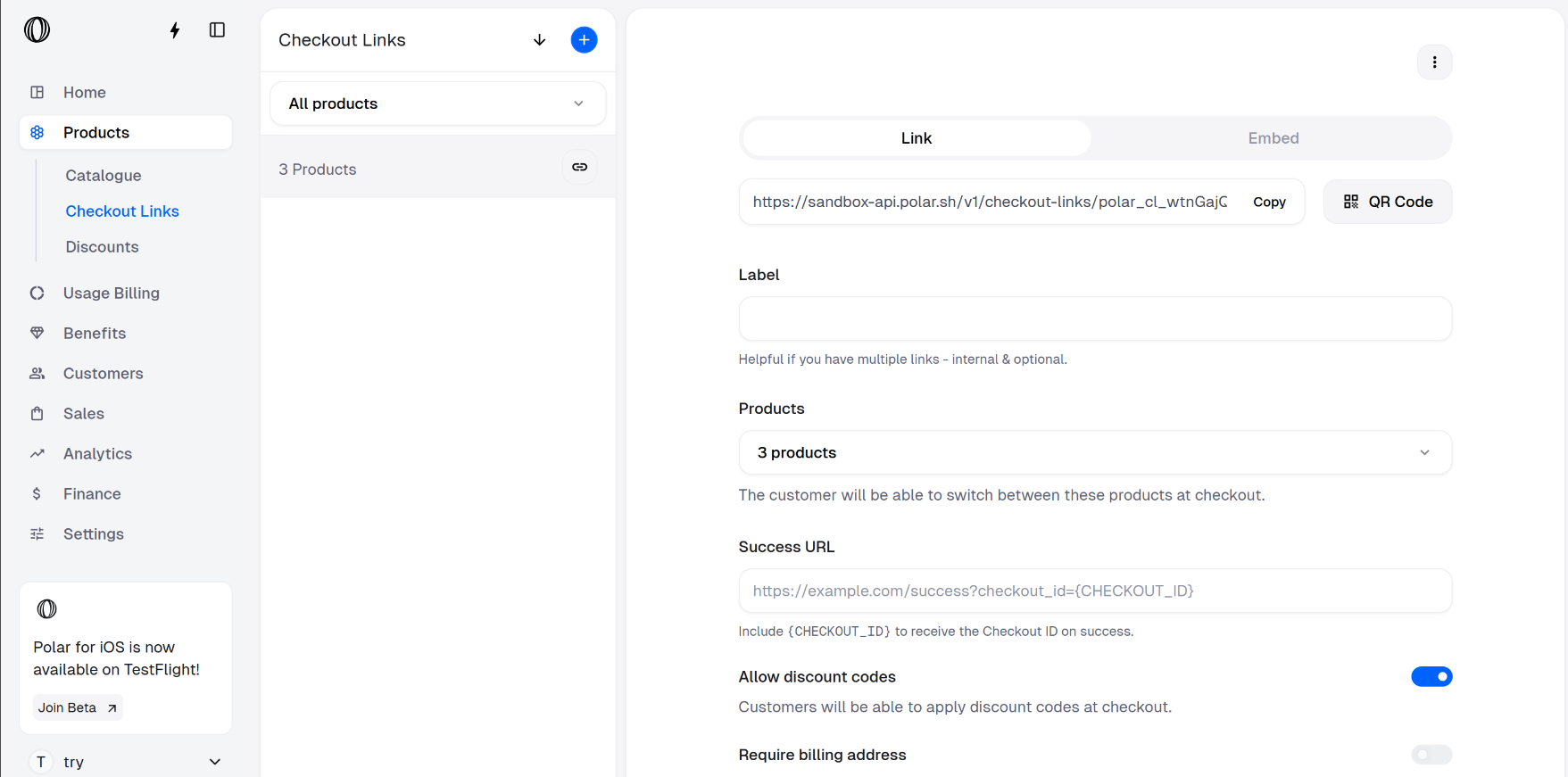 You can copy this link and share to your customers for them to purchase a variant.
## Purchasing from variants
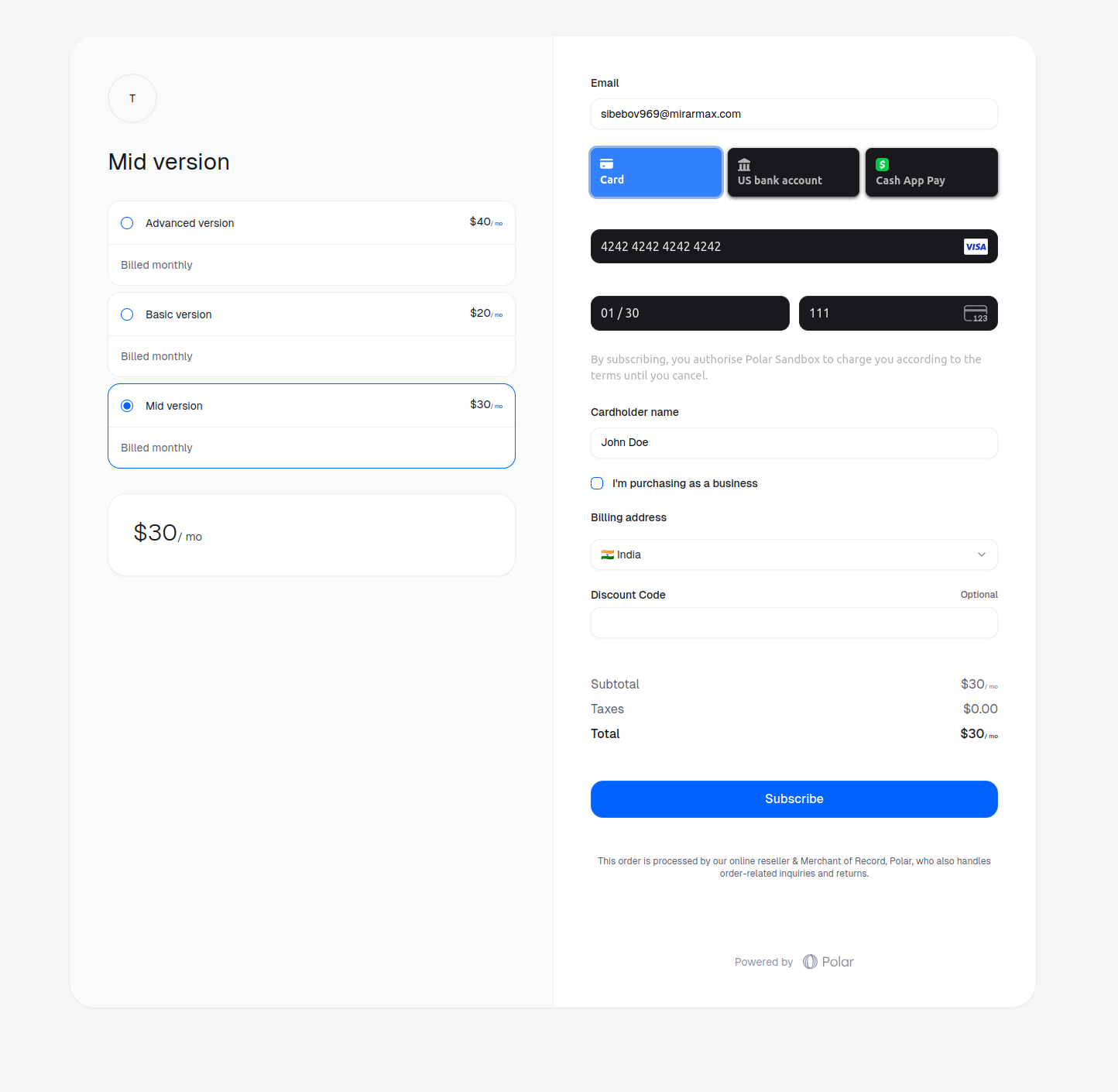
On opening the checkout link, the customer will need to select the variant they want to purchase and fill their email address and card details.
You can copy this link and share to your customers for them to purchase a variant.
## Purchasing from variants
On opening the checkout link, the customer will need to select the variant they want to purchase and fill their email address and card details.
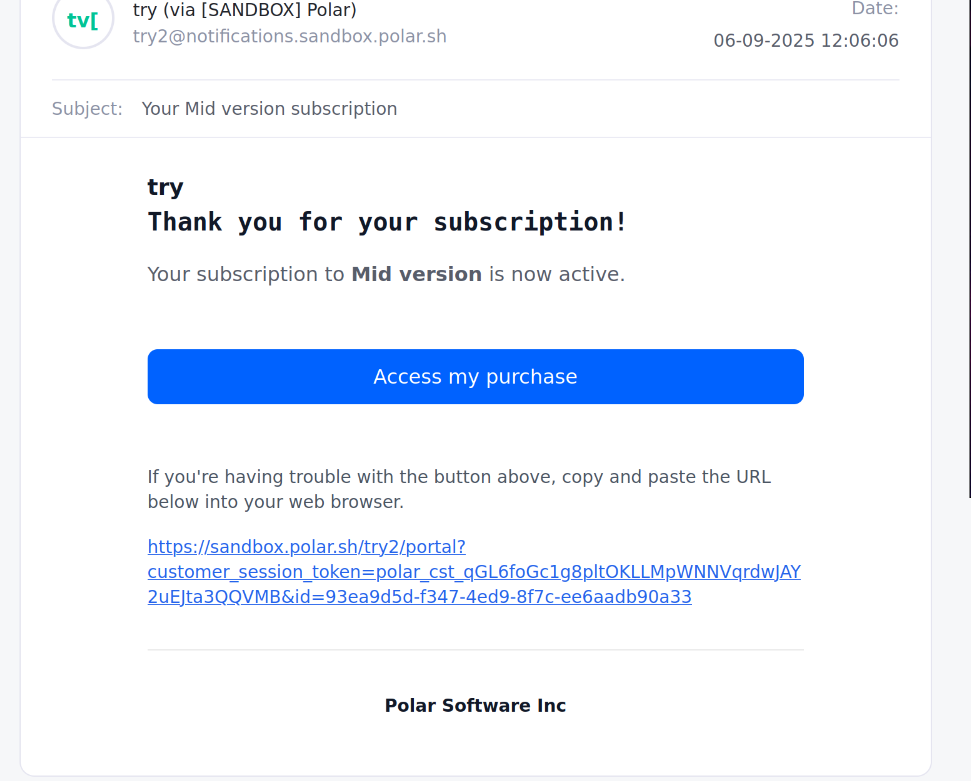
 Once the customer has purchased the subscription, they will receive an email containing the link to access their purchase.
 ## Downgrading to another product variant
On opening the link from the email received, the customer needs to click on **Change Plan**.
## Downgrading to another product variant
On opening the link from the email received, the customer needs to click on **Change Plan**.
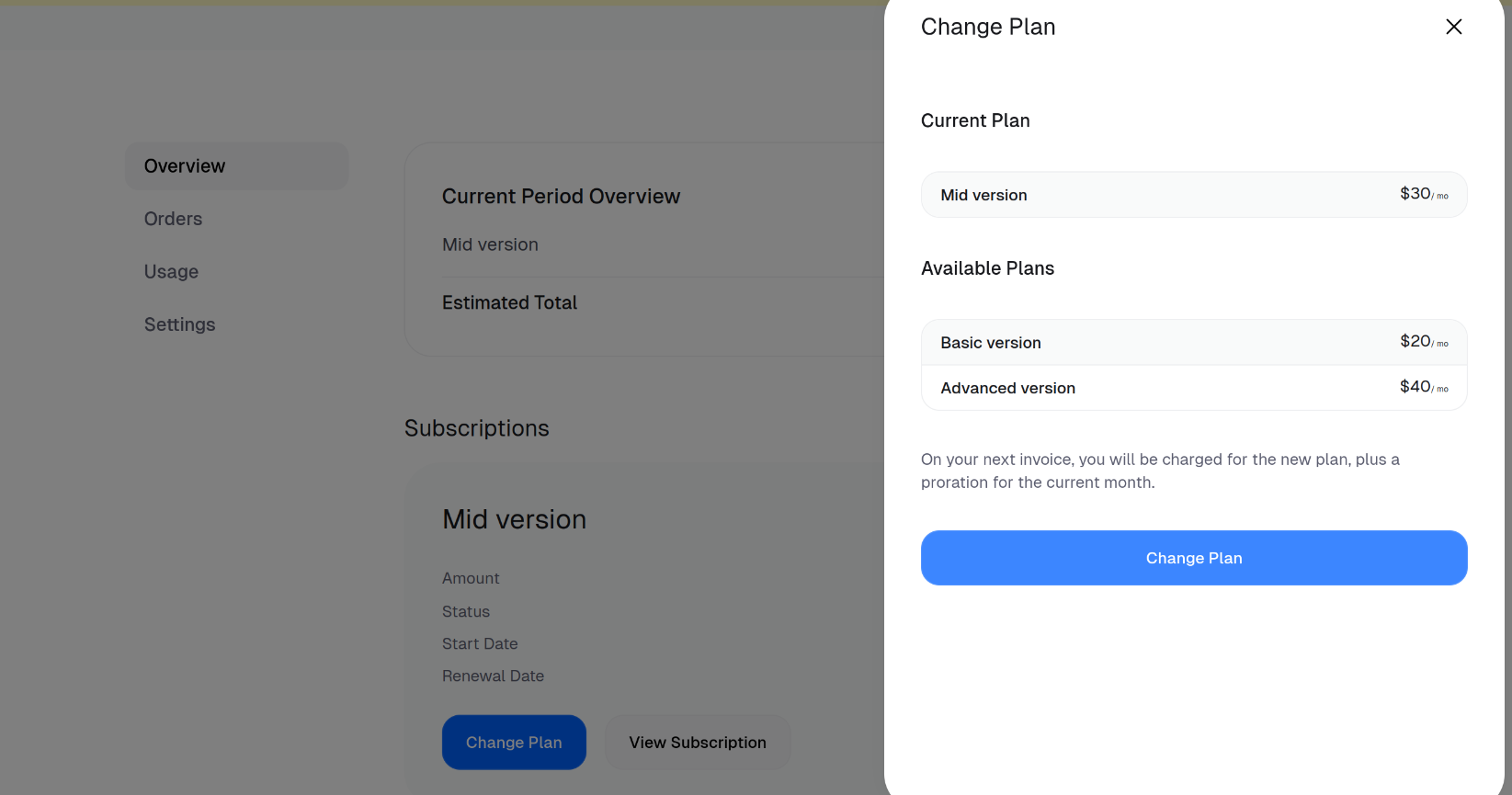
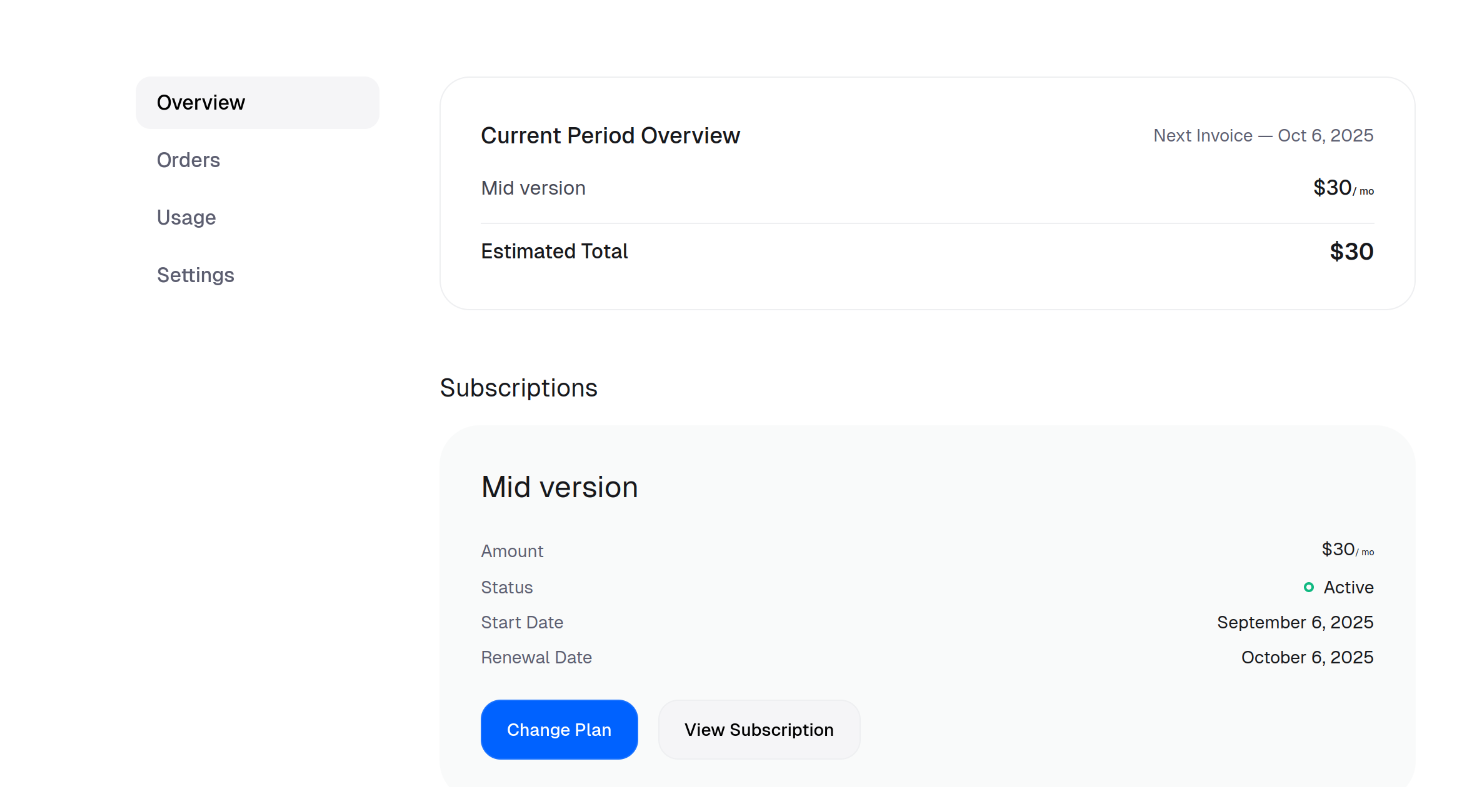 Then, they can select the plan they want to downgrade to and click on **Change Plan**.
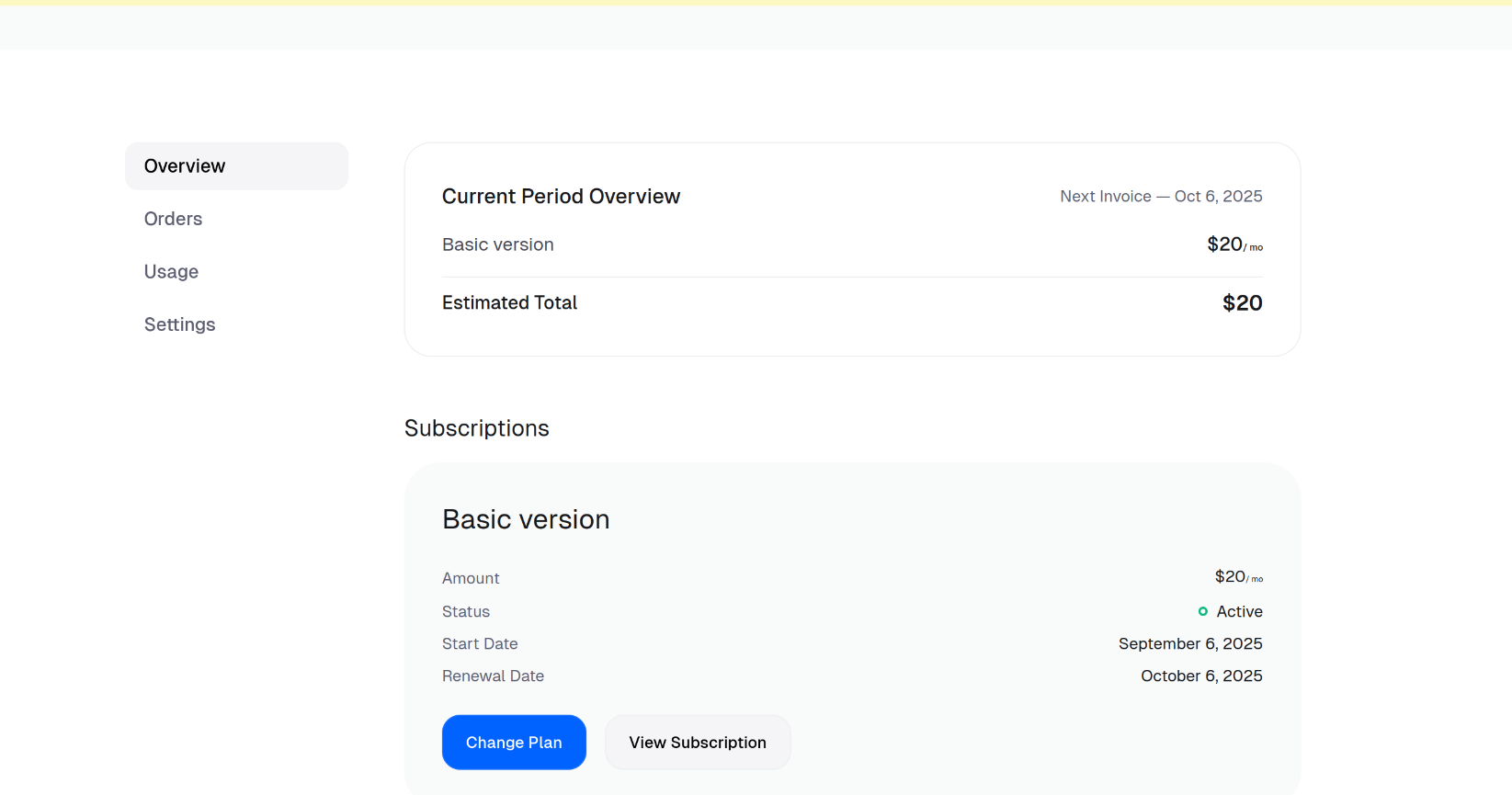
 Now, the product is changed to **Basic version** instead of **Mid version** on the portal.
 ## Upgrading to another product variant
On opening the link from the email received, the customer needs to click on **Change Plan**.
Then, they need to select the variant they want to upgrade to, **Advanced version** and click on **Change Plan**.
## Upgrading to another product variant
On opening the link from the email received, the customer needs to click on **Change Plan**.
Then, they need to select the variant they want to upgrade to, **Advanced version** and click on **Change Plan**.
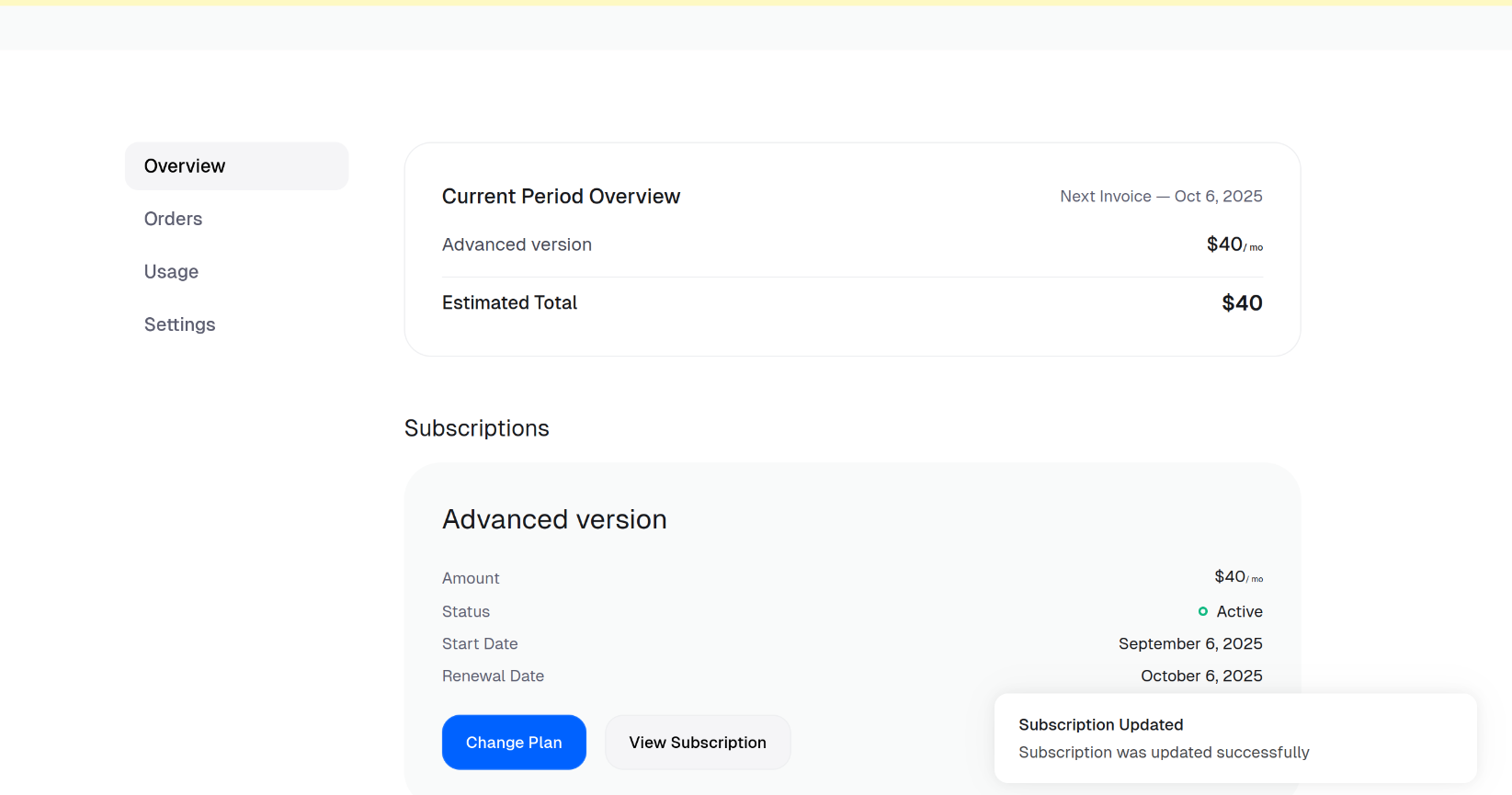
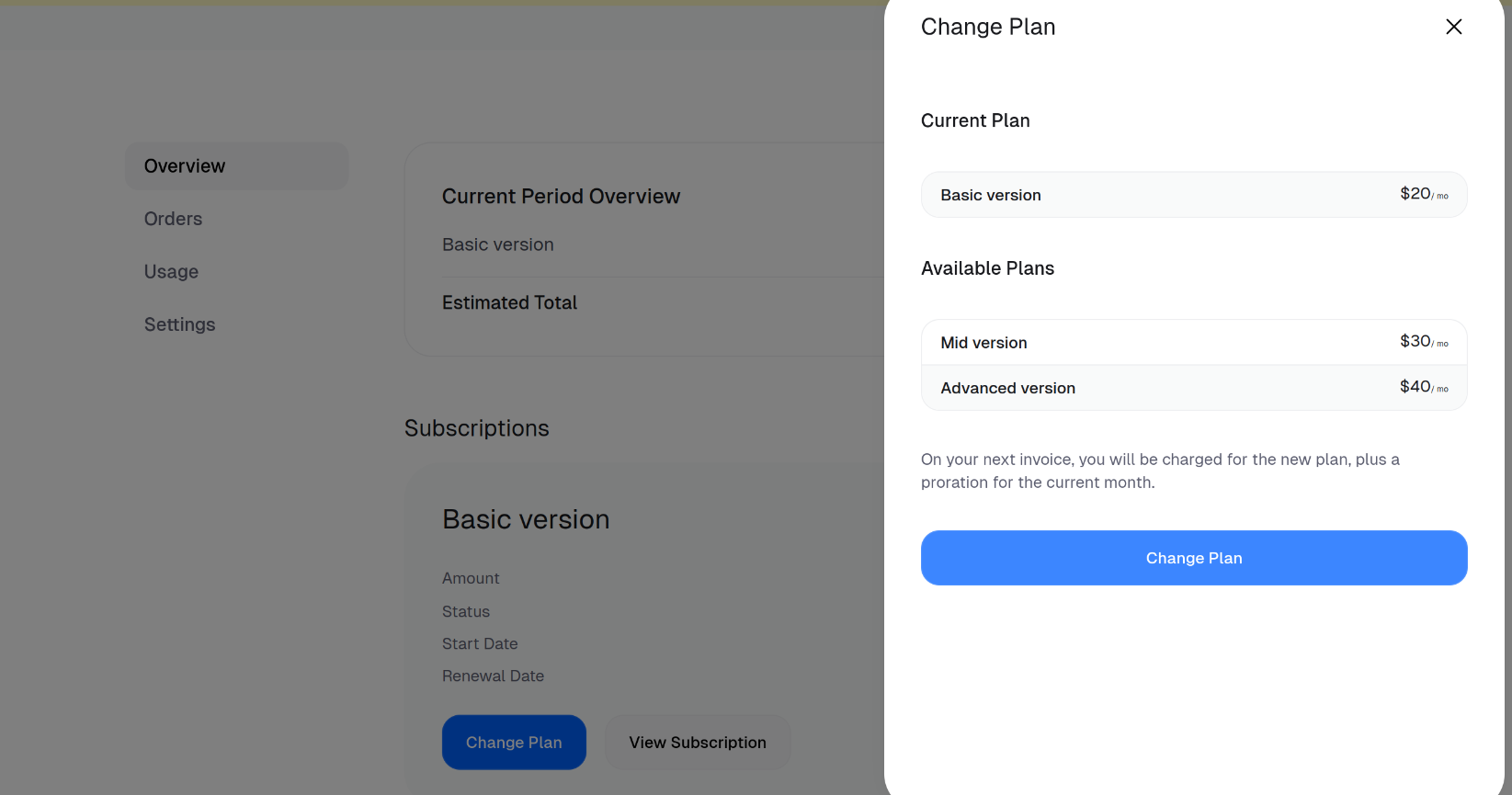 Now, the product is changed to **Advanced version** on the portal.